Workflow · 6 min read
Amazon listing photos with AI
Meet every Amazon image requirement and fill all nine slots without a photographer.
Amazon is strict about product images, particularly the main image. Get it wrong and your listing is suppressed. Get it right and a clean, professional image is one of the strongest levers on click-through rate. The good news is that Amazon's requirements — pure white background, product-forward framing, no text — are exactly what AI product photography does well. This guide walks through every spec and the VisoLab workflow to meet it.
Amazon's main image requirements
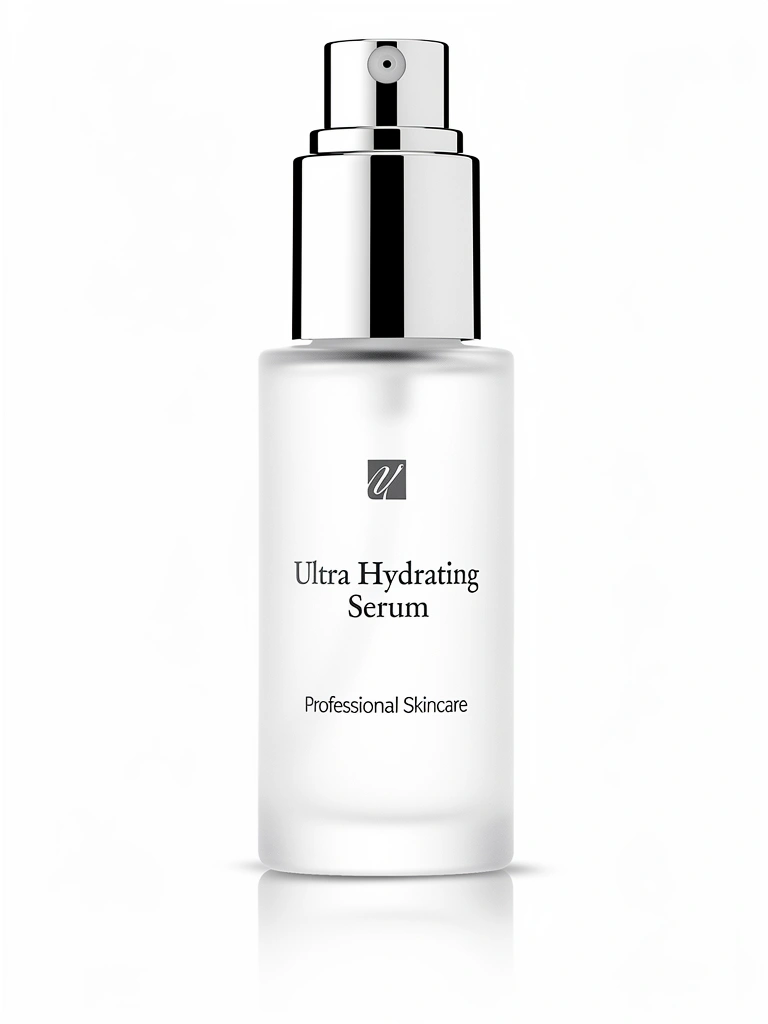
Amazon's main image (the MAIN image type) has specific rules: the background must be pure white (RGB 255, 255, 255 or hex #FFFFFF), the product must fill at least 85% of the frame, and the image must contain no watermarks, borders, text, graphics, or mannequins. The minimum size is 1000 pixels on the longest side — Amazon uses this for the zoom feature. 1600 pixels or larger is recommended for the best zoom experience. Accepted formats are JPEG, TIFF, PNG, and GIF; JPEG is the most compatible. VisoLab generates at any resolution you choose; use 1600×1600 or larger for square products and adjust the aspect ratio to match the product's natural proportions.
Generating the main image
In VisoLab, describe the product clearly in the prompt: name the object, its material, its colour, and the angle. 'A brown glass serum bottle, front-facing, clean white studio background, product photography, sharp focus' gives the model enough to work with. Use a square aspect ratio for most products. After generating, switch to Edit and use Background Removal to ensure the background is a true pure white — even if you prompted for white, background removal guarantees a clean composite. For the full prompt-writing technique, see Prompts that sell products.
Amazon allows up to nine images — use them
Amazon lets you upload up to nine product images per listing. Only the first (MAIN) has the pure white background requirement. The others can show the product in use, detail shots, size comparisons, and lifestyle scenes. This is where AI generation gives you a significant advantage: once you have the main packshot, you can use it as a reference image to generate eight more scenes without a photographer. A lifestyle shot in a kitchen, a detail shot of the label, an in-use shot showing the product being applied — each takes a few minutes to generate. For the reference image technique, see How to use reference images for consistent product photos.
Secondary image types that convert
The images that perform best alongside the main packshot are: a lifestyle shot showing the product in a realistic setting (a kitchen counter, a bathroom shelf, a desk), a detail shot focused on a specific feature or texture, a size/scale shot showing the product next to a recognisable object, and an in-use shot showing the product being used. All four can be generated from the original packshot using it as a reference. Keep the lighting direction and colour temperature consistent across all images — if the main shot has warm light from the left, describe the same in every secondary scene.
Video on Amazon
Amazon allows sellers to upload a product video, which appears in the image carousel on the product detail page. A 15–30 second clip showing the product, its packaging, and an in-use moment is a strong addition. Generate a short clip from the main product image in VisoLab, then trim and add any overlay text in your editing tool before uploading. Amazon requires MP4 or MOV format with a 16:9 aspect ratio for videos. For the image-to-video workflow, see How to turn a product photo into a video.
| Requirement | Amazon's rule | VisoLab approach |
|---|---|---|
| Background | Pure white (#FFFFFF) | Generate on white, then use Background Removal to guarantee it |
| Product fill | At least 85% of the frame | Prompt for close-cropped, tight composition |
| Minimum size | 1000px on longest side | Generate at 1600×1600 or larger |
| File format | JPEG, TIFF, PNG, or GIF | Download as JPEG for compatibility |
| Text/watermarks | None allowed | Generated images have no overlays |
| Number of images | Up to 9 slots | Main + 8 scene variants from the same reference |
Try it free
Make product photos and videos in VisoLab. Free credits to start — no studio day required.
Start free →FAQ
- What is Amazon's minimum image size?
- Amazon requires a minimum of 1000 pixels on the longest side for the zoom feature to activate. 1600 pixels or larger is recommended for the best zoom experience. The maximum file size is 10 MB.
- Does the background have to be exactly pure white?
- For the MAIN image type, yes — Amazon's requirement is pure white (RGB 255, 255, 255). Off-white or light grey backgrounds can cause the listing to be flagged or suppressed. Use Background Removal in VisoLab after generating to ensure the background is a clean composite rather than relying on the model's prompt interpretation.
- Can I use AI-generated photos on Amazon?
- Yes. Amazon does not prohibit AI-generated images. What matters is that the image accurately represents the product as described in the listing. Do not generate a product that differs from what you are selling.
- Do I need a real product to generate Amazon photos?
- For a new product pre-launch, you can generate images from a description or a supplier's reference shot and use them to build the listing. Amazon requires that the image accurately represents the product, so the AI output should match what the customer will receive.
- What aspect ratio should Amazon product photos be?
- Square (1:1) is the most common and displays cleanly in search results. Some products — particularly tall or wide items — benefit from a portrait or landscape crop, but square is the safest default for the main image.
- What about A+ Content images?
- A+ Content (available to Brand Registry sellers) allows larger images and banner-style layouts on the product page. These have more flexible requirements than the main image — lifestyle shots, comparison charts, and feature callouts all work. VisoLab can generate the lifestyle and scene images; you add text and layout in your design tool or Amazon's A+ builder.
More guides

Workflow · 4 min read
From packshot to lifestyle scene
Keep the bottle the same. Change only the world around it.
Read guide →
Workflow · 4 min read
How to keep a product or character consistent with reference images
A reference image stops the model inventing the subject again. Approve one still, then prompt the new place, crop, or camera move.
Read guide →

Workflow · 4 min read
Image-to-video prompts for steady product shots
A short image-to-video clip works when the start frame is already right and the prompt asks for one simple camera move.
Read guide →