
Guide · 5 min read
Stable Diffusion product photography without a local install
A text-to-image still of the product, then a clean background, without running a checkpoint on your own machine.
Stable Diffusion product photography means a text-to-image still: you describe the product, the light, and the background, and a model draws the frame. Stable Diffusion is Stability AI's model family, not something VisoLab built. In the studio you can run Stable Diffusion XL when it is in the catalog that day, or the same job on a newer text-to-image model, without installing a checkpoint. The sequence below is the one we use for a marketplace still. For the longer version, see How to make product photos with AI.
What the still has to do
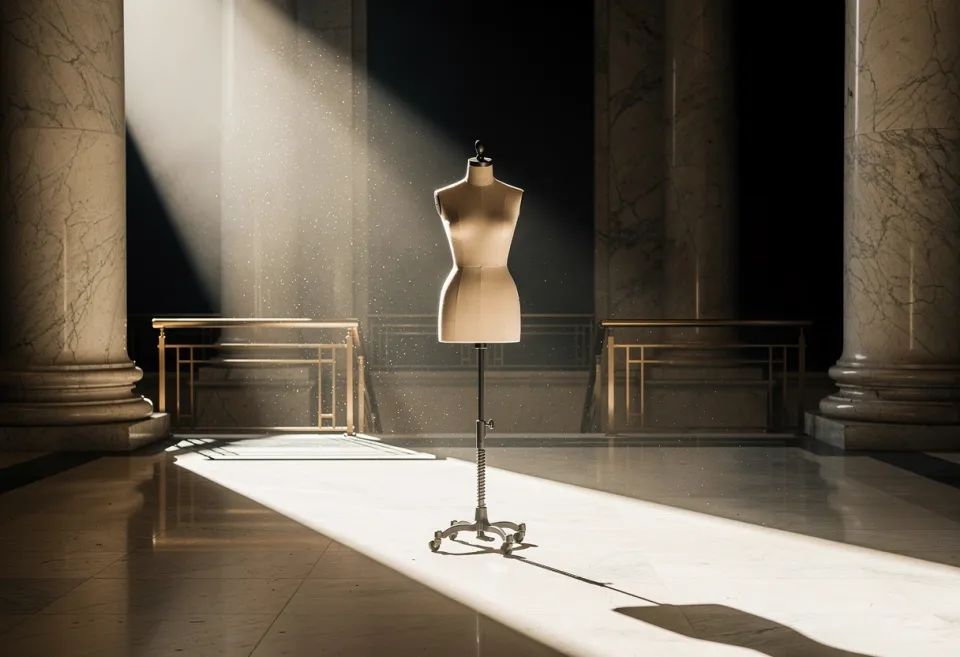
A catalog frame wants the full product, a plain background, and a soft shadow. A campaign frame wants atmosphere and empty space for a headline. Write that job down before the prompt. If you already have a photograph of the SKU, start from that file as a reference instead of inventing the object. AI product photography shows the kinds of stills this is for, and visual AI for ecommerce is the version for a whole set of SKUs.
Write the text-to-image prompt
Lead with the object: material, colour, shape, and surface. Then place it: background, light direction, camera height. Leave logos and readable packaging out of the prompt unless you are using a text-strong model on purpose. Add the real label later in Edit. Prompts that sell products has a sentence you can reuse. Open the AI image generator when you are ready to run it.
Pick Stable Diffusion XL, or a newer text-to-image model
Pick Stable Diffusion XL if the list includes it. It is Stability AI's text-to-image model, and VisoLab did not build it. If it is not listed that day, Seedream 5.0 Lite and Nano Banana 2 are the usual starts for a clean catalog still, and FLUX.2 is the one to try when you want richer materials. These are starting points, not scores. Confirm what is on today on the Models page. Every plan includes every model that is enabled. The Generate button shows the credit cost before you run. See How VisoLab credit costs work.
Clean the frame before you publish it
Keep the variant where the silhouette is clear and nothing floats. Then remove the background if the sweep is wrong, or enlarge the still if the file is too small for the listing. When the same product needs a room around it, send the packshot as a reference. From packshot to lifestyle scene walks through that step.
FAQ
- Does VisoLab include Stable Diffusion?
- Open the Models page. If Stable Diffusion XL from Stability AI is listed, you can run it there. If it is not, use another text-to-image model in the same studio.
- Do I need a GPU or a local Stable Diffusion install?
- No. You write the prompt in the browser, pick a model, and the still is saved to your Library. You do not download a checkpoint.
- Can I use the photo on a product page?
- Yes, for work you generate on VisoLab under your plan, subject to the License page. Check the frame against the real product before you publish it. Do not invent a trademark or a celebrity.
- What if I already have a photo of the product?
- Upload it as a reference so the model follows that object, or cut it out with the background remover and place it on a new scene. See reference images for consistency.
More guides
Guide · 4 min read
How to make product photos with AI
Describe the product, set the shot, generate, then clean up. No studio day required.
Read guide →

Guide · 4 min read
How to turn a product photo into a video
Start from an approved still when the product must stay exact. Use text-to-video when motion is the idea.
Read guide →
Guide · 4 min read
Prompts that sell products
Object first, then light, place, and crop. Leave the logo out unless you need the type.
Read guide →