
Guide · 4 min read
Text to image: how a prompt becomes a picture
What text-to-image models do, when to start from a photo instead, and how to brief a product still.
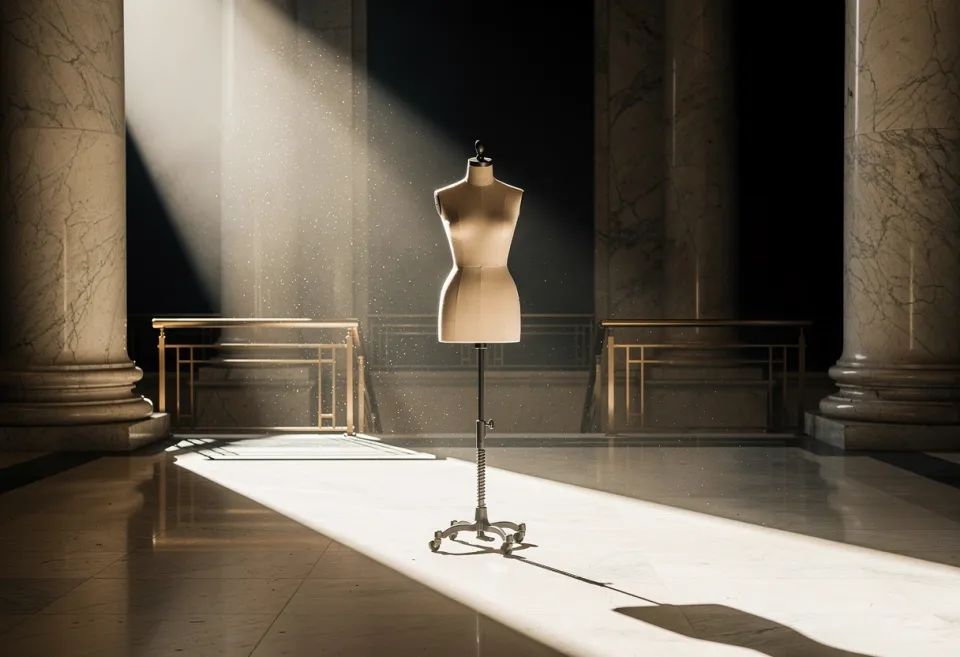
Text to image is a model that reads a written prompt and draws a picture. There is no starting photo. You describe the subject, the light, and the frame, then pick a model and run it. People also call the same job an AI photo generator or an AI image generator. The tool for it here is the AI image generator. This page is what the words mean, and how to brief a product still so the first results are usable.
Text to image, or image to image
Use text to image when you do not have a photo yet: a concept, a launch frame, a background you will replace. Use image to image when the object must match a real SKU. You upload the photo, and the model changes the scene while following that reference. Reference images and packshot to lifestyle are that second path. An AI photo editor with a prompt is a third path: the picture already exists, and you only change part of it.
How to brief a product still
Name the object first, then the setting, the light, and the crop. One job per prompt: a white packshot, or a lifestyle scene, not both. Keep logos out of the sentence and add the real label in Edit. A reusable pattern is in Prompts that sell products, and the full product sequence is How to make product photos with AI.
- Packshot: square frame, plain background, full product, soft shadow.
- Lifestyle: one setting, light from one direction, space left for type if you need it.
- Detail: close crop on material, not a second product.
Text to image models in the studio
Text to image models differ in speed, material detail, and how well they render type. Seedream 5.0 Lite and Nano Banana 2 are strong starts for a clean still. FLUX.2 is a reasonable pick for richer light. GPT Image 2 is the one to try when the frame must include a readable headline. Stable Diffusion XL, from Stability AI, is in the catalog for the classic text-to-image look. Confirm the live list on the Models page. Every enabled model is on every plan. The button shows the credit cost first. Stable Diffusion product photography is the product-still version of that older model family.
After the still
Keep two or three variants and drop the ones where the product floats or the silhouette breaks. Then cut the background, enlarge the file, or turn a keeper into a clip. Those tools are the background remover, the image upscaler, and image to video.
FAQ
- What is a text to image model?
- It takes a written prompt and returns a picture. It does not need a starting photo. Image to image is the mode that does start from a photo.
- Is text to image the same as an AI image generator?
- For a new picture from a sentence, yes. The AI image generator is that tool. Editing a picture you already have is a separate step.
- Which text to image model should I start with?
- For a clean product still, start with Seedream 5.0 Lite or Nano Banana 2 and read the credit cost on the button. The Models page is the current catalog.
- Can I use the picture commercially?
- Yes, for work you generate on VisoLab under your plan, subject to the License page. Compare the still with the real product before you list it.
More guides

Guide · 4 min read
How to make product photos with AI
Describe the product, set the shot, generate, then clean up. No studio day required.
Read guide →

Guide · 4 min read
How to turn a product photo into a video
Start from an approved still when the product must stay exact. Use text-to-video when motion is the idea.
Read guide →
Guide · 4 min read
Prompts that sell products
Object first, then light, place, and crop. Leave the logo out unless you need the type.
Read guide →